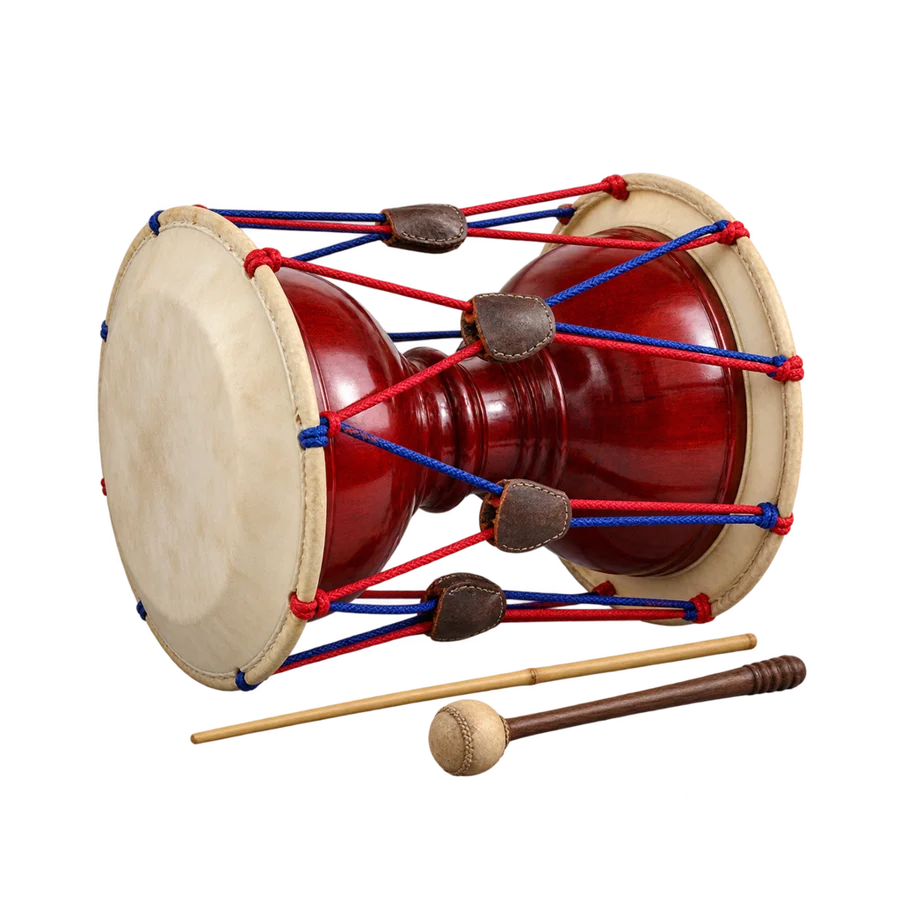
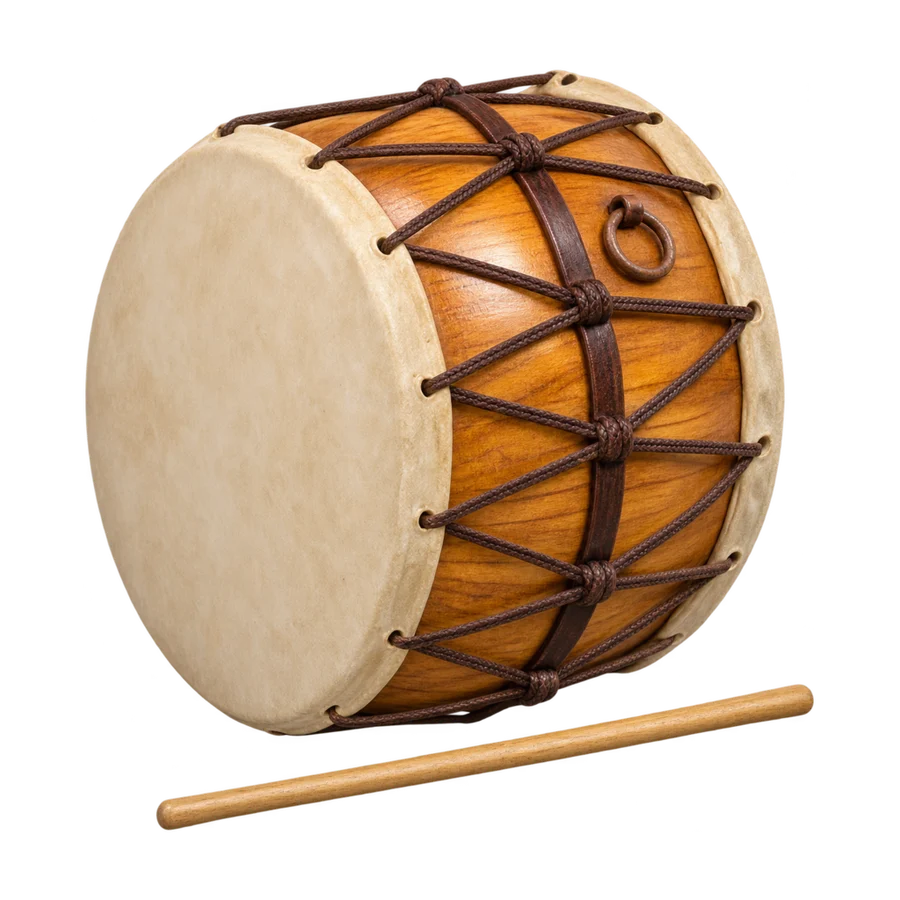
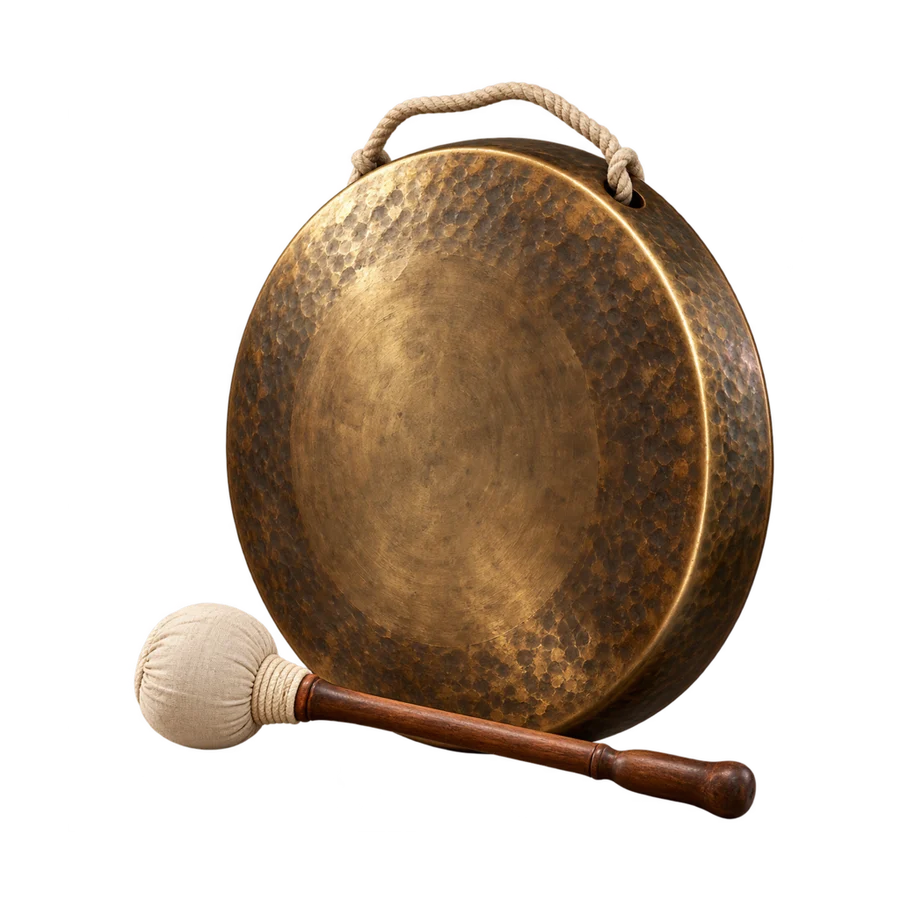
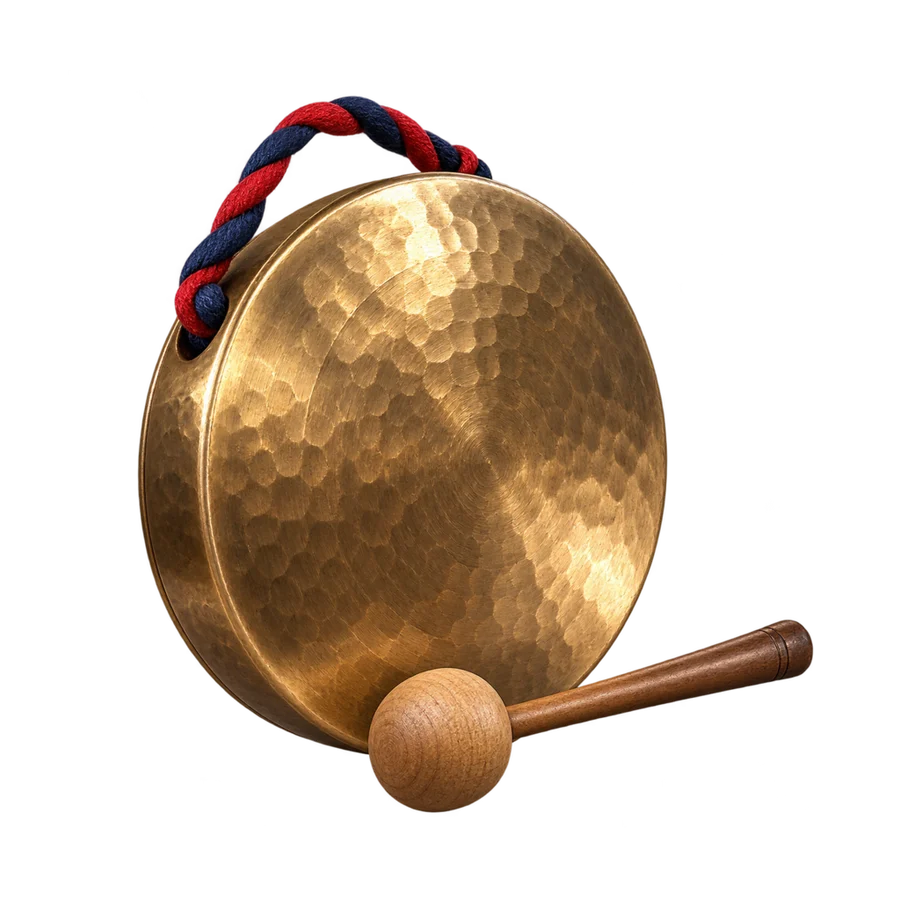

Kkwaenggwari and jing
- Metal percussion with different sizes and resonances.
- Explore their sounds on individual play surfaces.


Bandmate
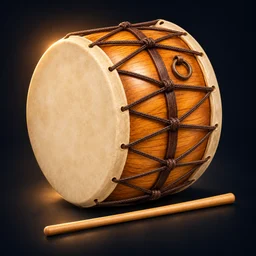

Play kkwaenggwari, janggu, buk and jing and practise included rhythms by instrument. This is an iOS update preview, with new practice, lesson and ensemble features being prepared for release.
01
Each instrument has its own playing surface and articulations. A stroke label and strength indicator show the result of each input.
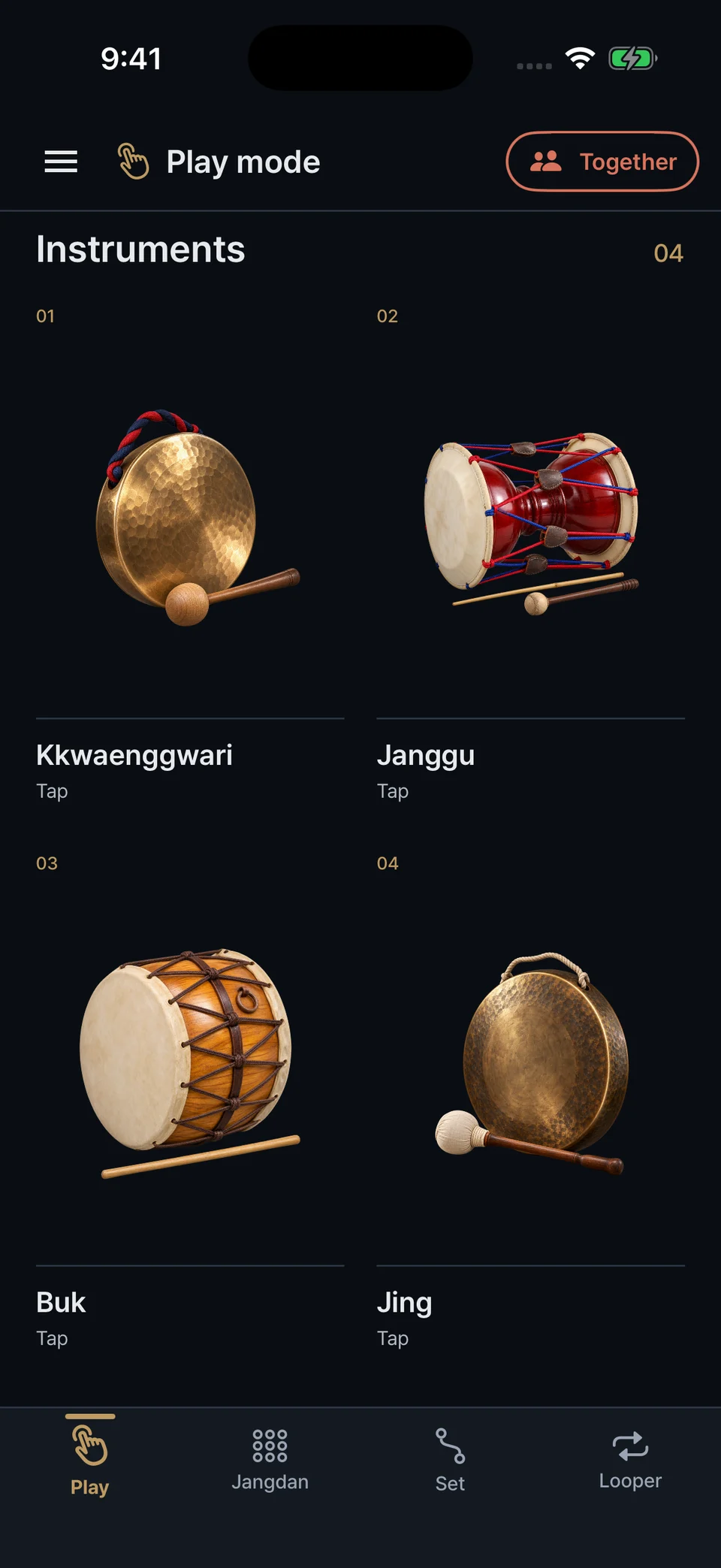
Select kkwaenggwari, janggu, buk or jing to open its instrument-specific playing surface.
Alternate the janggu heads or the buk head and rim to compare their sounds.
Use the damping gestures on kkwaenggwari and jing to compare open and shortened resonance.
02
The rhythm list combines categories, stroke syllables and tempo. Each entry has separate routes to preview, practice, lessons and the looper.
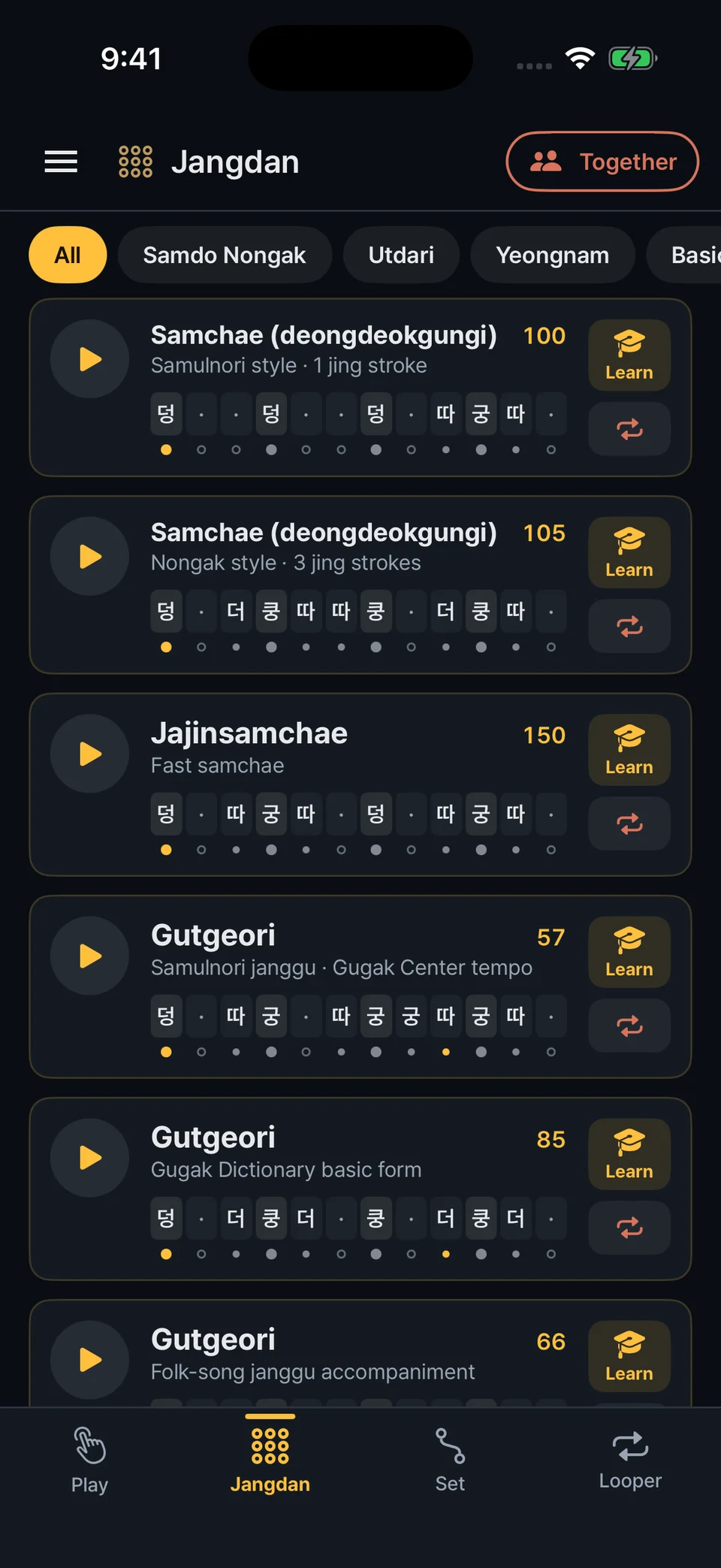
Choose All, Samdo nongak, Utdari, Yeongnam or basic rhythms to narrow the collection.
Press play, compare the sound with stroke syllables and beat marks, then press again to stop.
Open the card for practice, the lesson button for guided learning or the looper button for loop arrangement.
03
Practise one rhythm through Watch, Learn the order and Play in time. The controls separate stroke-position practice from timing evaluation.
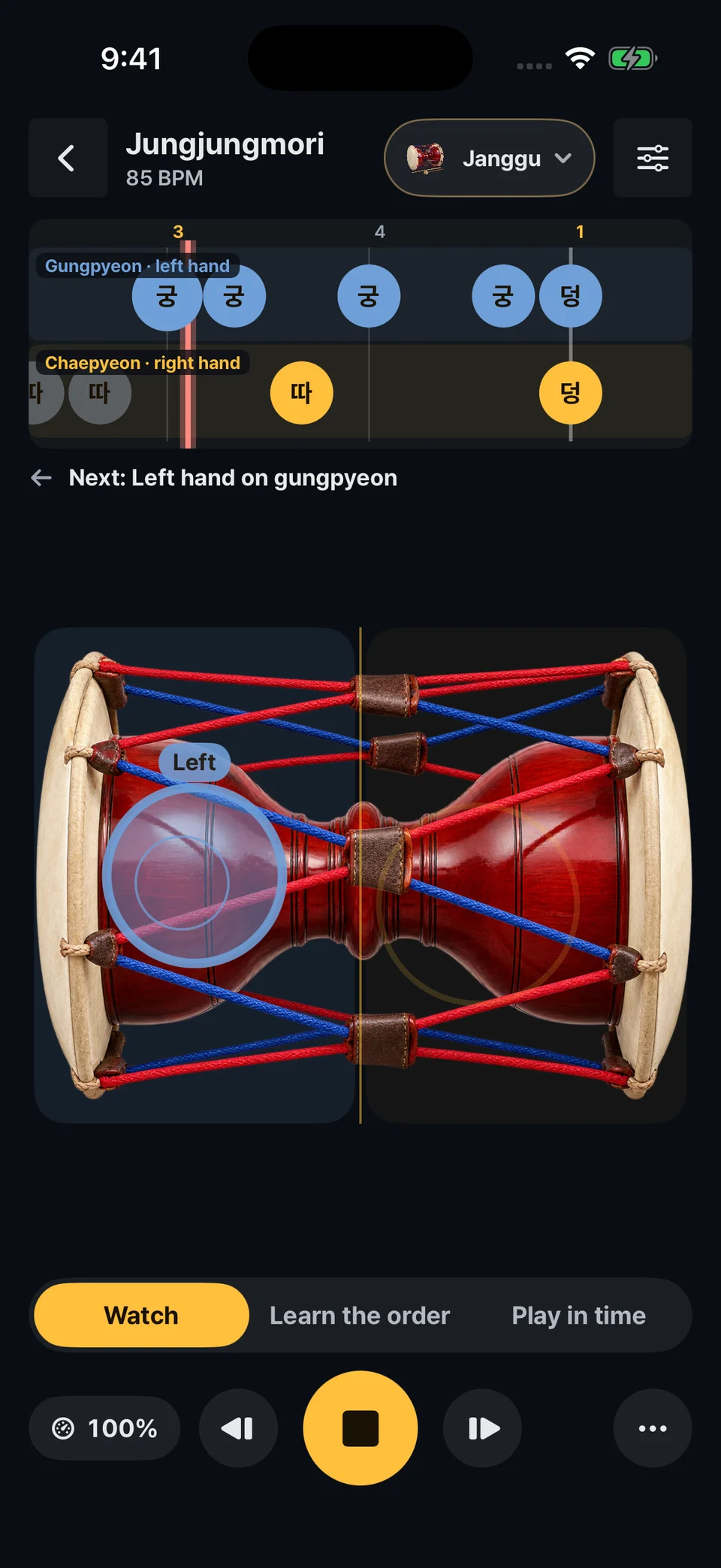
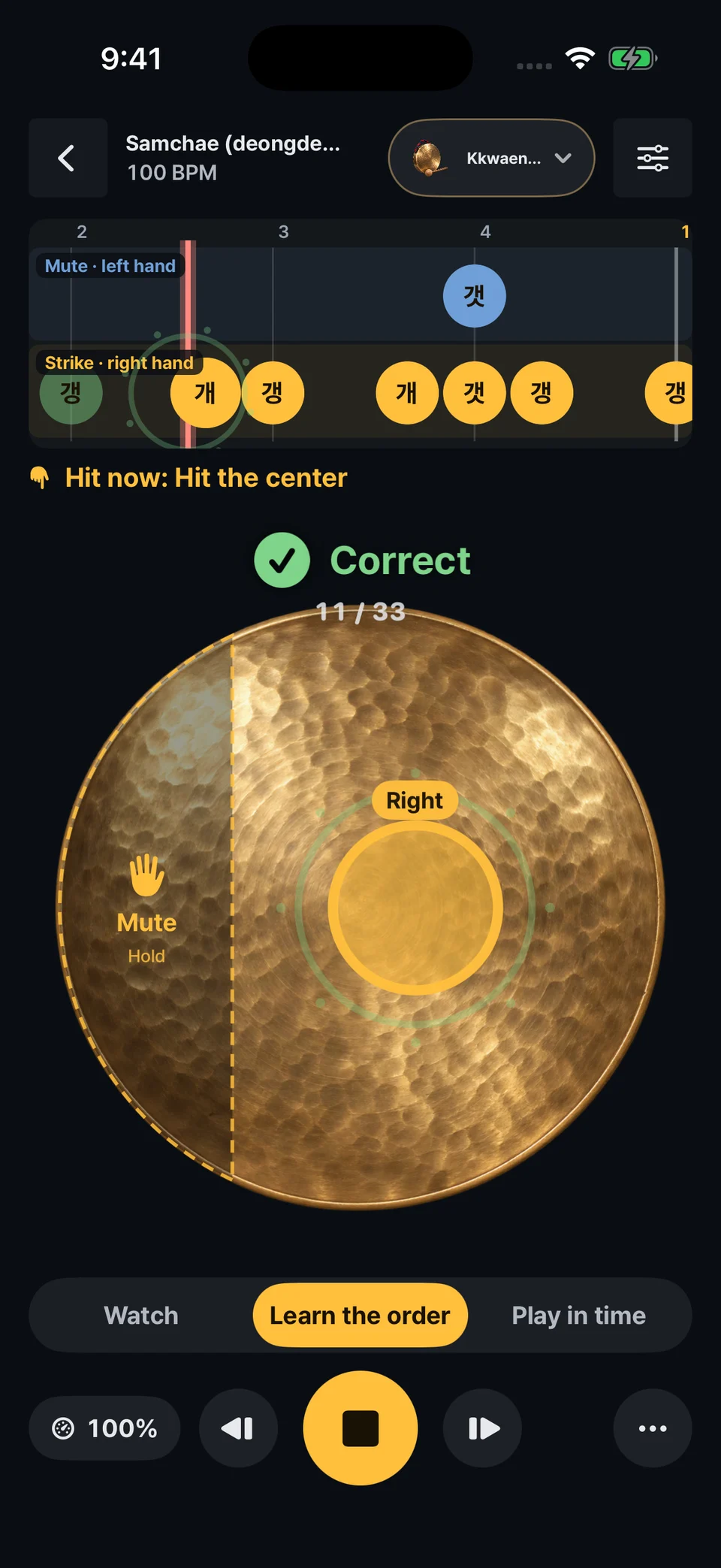
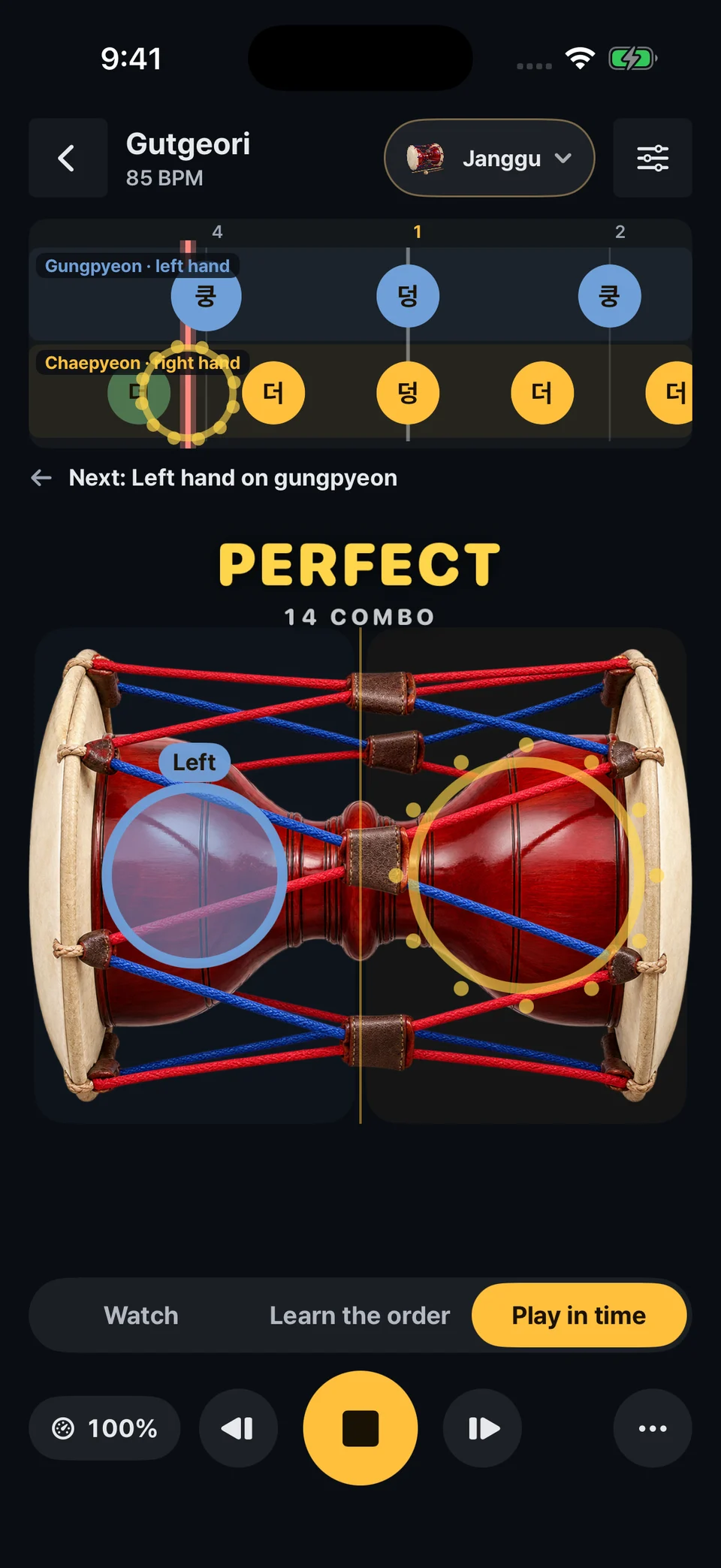
Choose a rhythm and instrument, then follow the progress marker and highlighted strike positions in Watch.
Strike the indicated position in Learn the order; missed strokes replay nearby material for another attempt.
Switch to Play in time, inspect early or late feedback and adjust speed and the repeated section.
04
Guided lessons contain six stages from listening to full-speed playing. Lessons remember completed stages and speed-ladder progress locally for each rhythm.
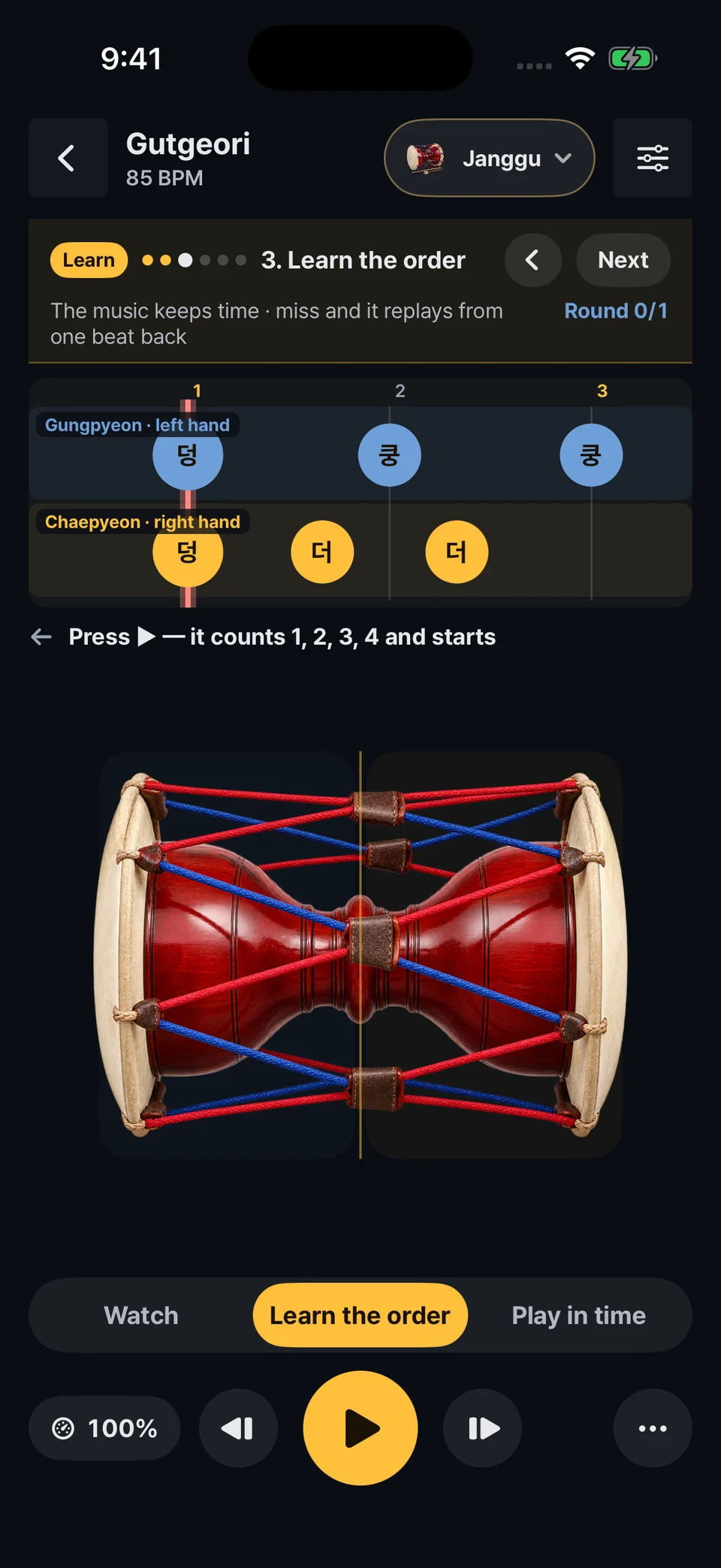
After listening, use slow watching at half speed with beat clicks to identify strike positions.
Retry input in Learn the order, then check the accuracy of a full cycle in slow timing practice.
Pass cycles in the speed ladder to increase speed, then play at the original tempo in the final stage.
05
Pan connects rhythms into an ordered performance with repetitions and tempo for each section. The app offers separate practice for the full sequence and its transitions.
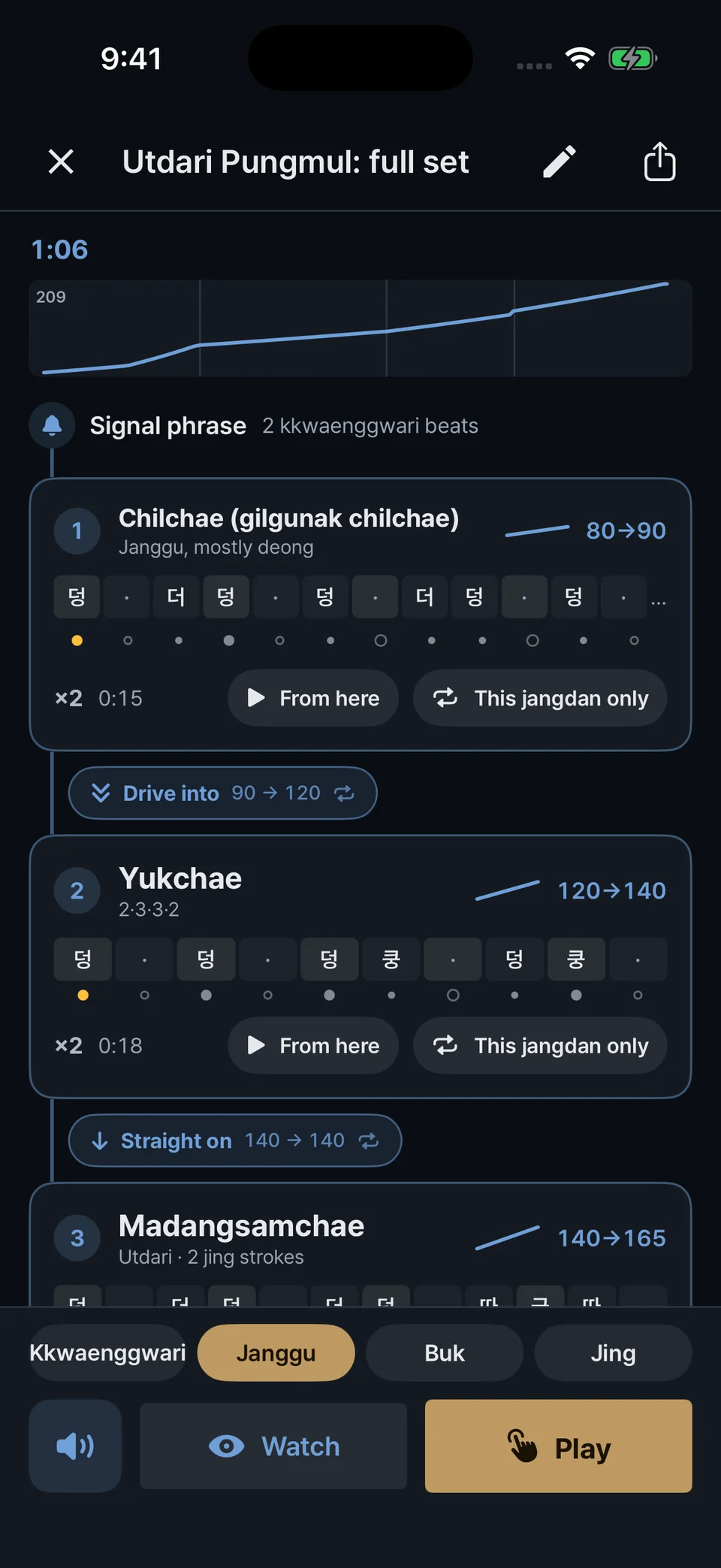
Add or replace rhythms in the editor and use the up and down controls to set their order.
Adjust repetitions and start/end BPM, then choose how the next rhythm connects.
Save and play from a selected section, or isolate a single rhythm or transition for practice.
06
The looper records and layers performances on four fixed instrument tracks. Separate controls distinguish unrecorded play-along from recording a track.
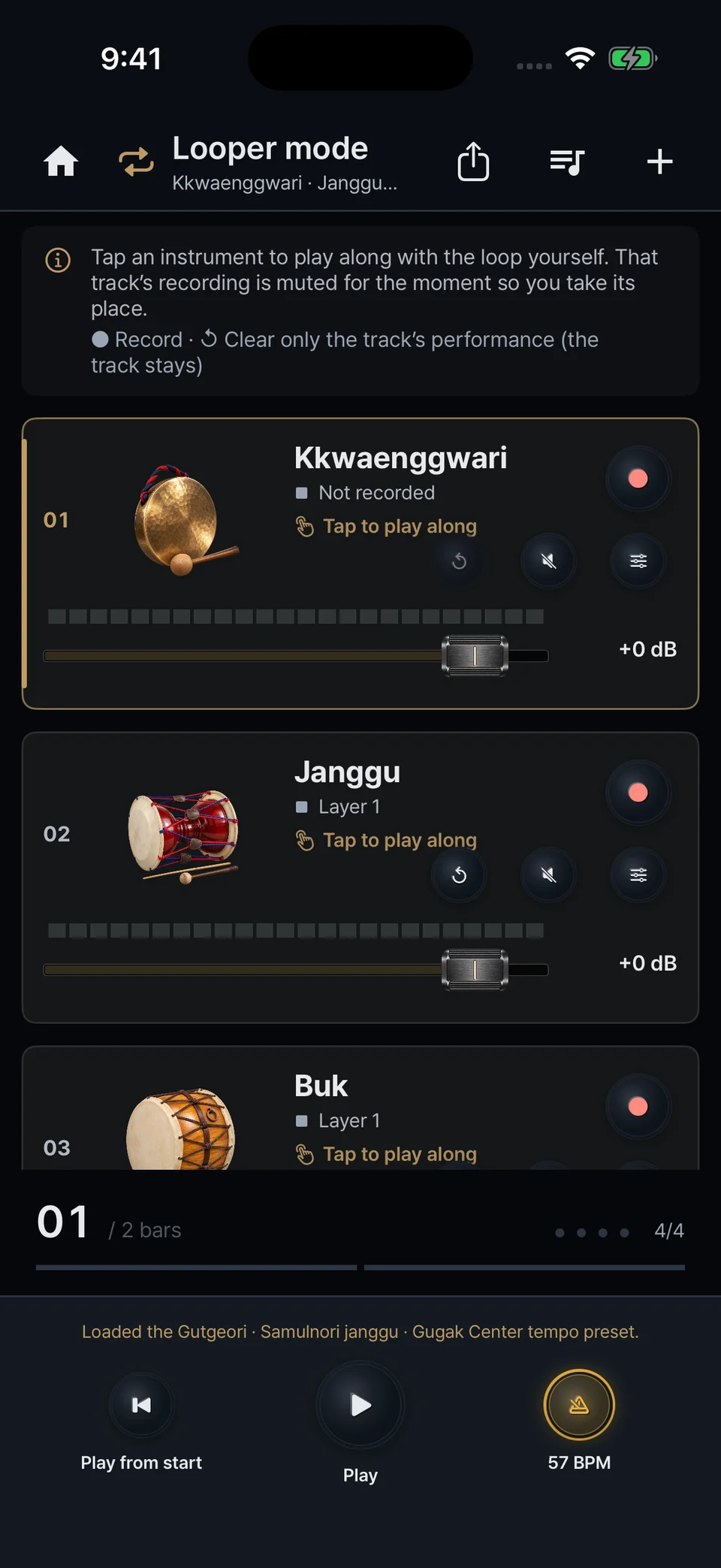
Send a rhythm from the list to the looper, or use a track record button to capture your own strokes.
Record another instrument over the loop, or tap an instrument to play along without recording.
Adjust track volume, mute, pan and EQ, then choose an output length and WAV or MP3 in Export to share the loop.
07
Ensemble is for sharing instrument roles in a room on the same Wi-Fi network. The host chooses the material, assigns roles and starts the group.
Join the same Wi-Fi network, create a room on one device and select the discovered room on the others.
The host selects a rhythm or Pan, then assigns instruments to participants or leaves them on automatic accompaniment.
Check readiness, start the group, play your assigned instrument and listen to the recording on the result screen.