








A jazz composition and arrangement app.

Motivo creates compositions from mood and instrument choices, with structure, mixing and score controls. Available on iOS and Android.

01

Compose

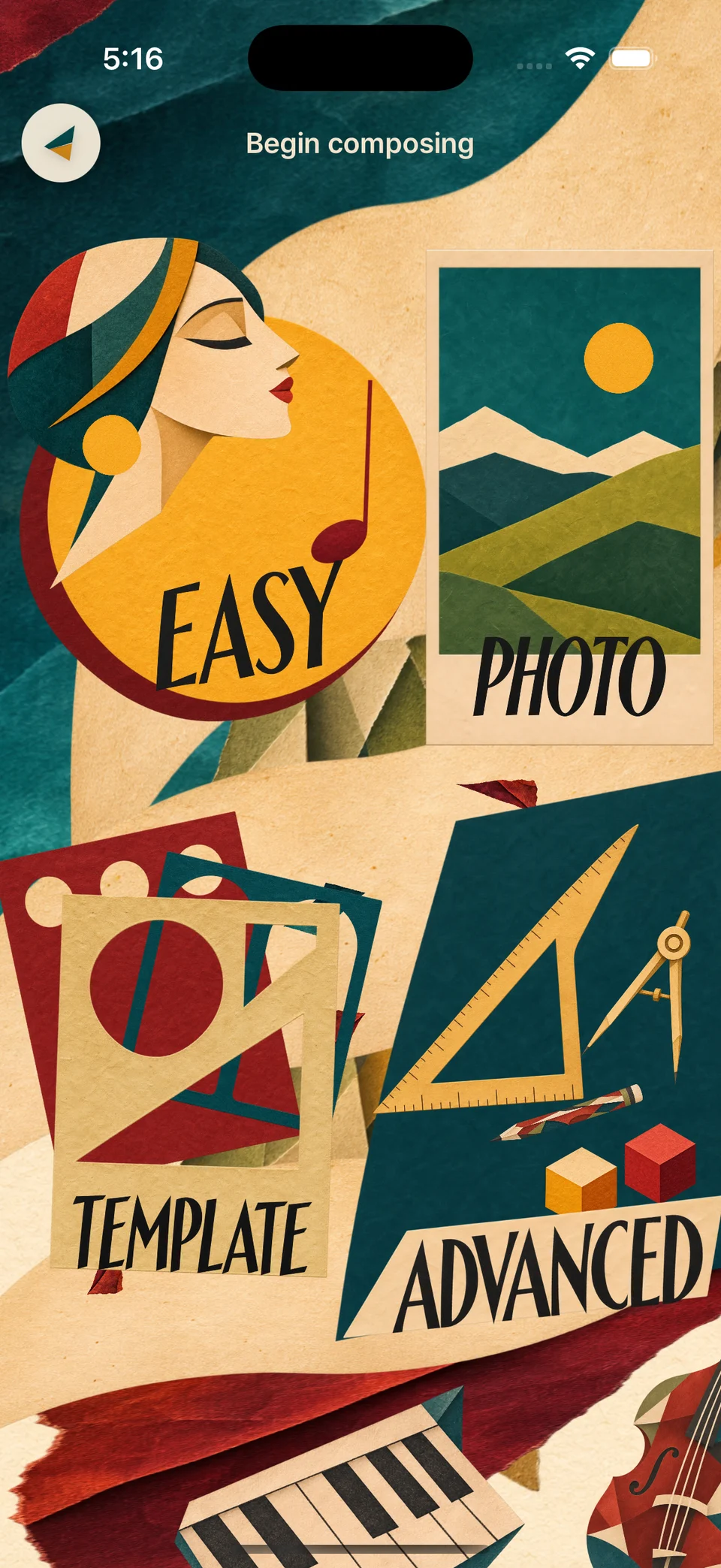
Motivo guided composition collects choices from mood through confirmation. Advanced composition exposes tempo, transposition, chords and performance character.

Compose
Compose

Workflow

  1. 01

    Set mood and flow

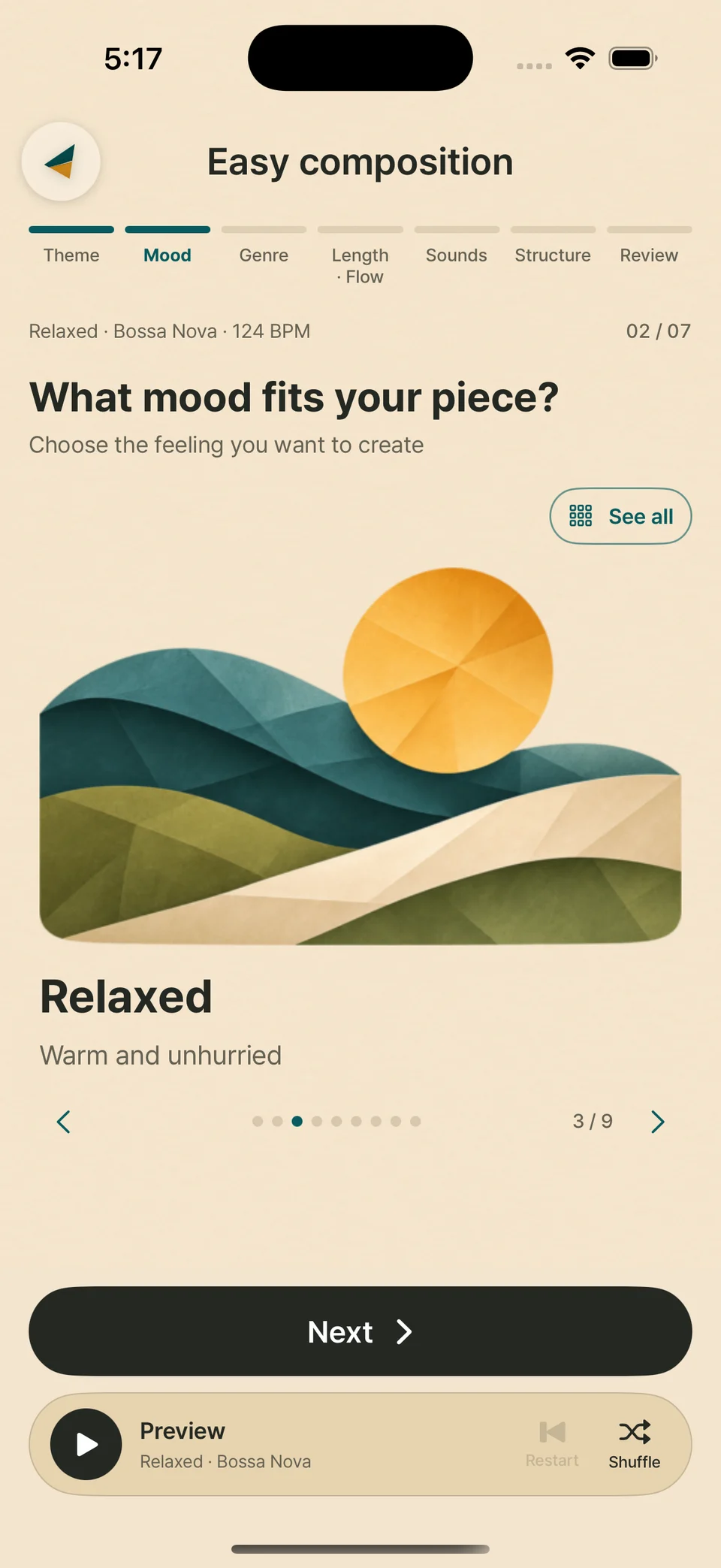
    Choose mood and genre, then select length and a development shape such as rising, falling or waves.

  2. 02

    Choose sounds and structure

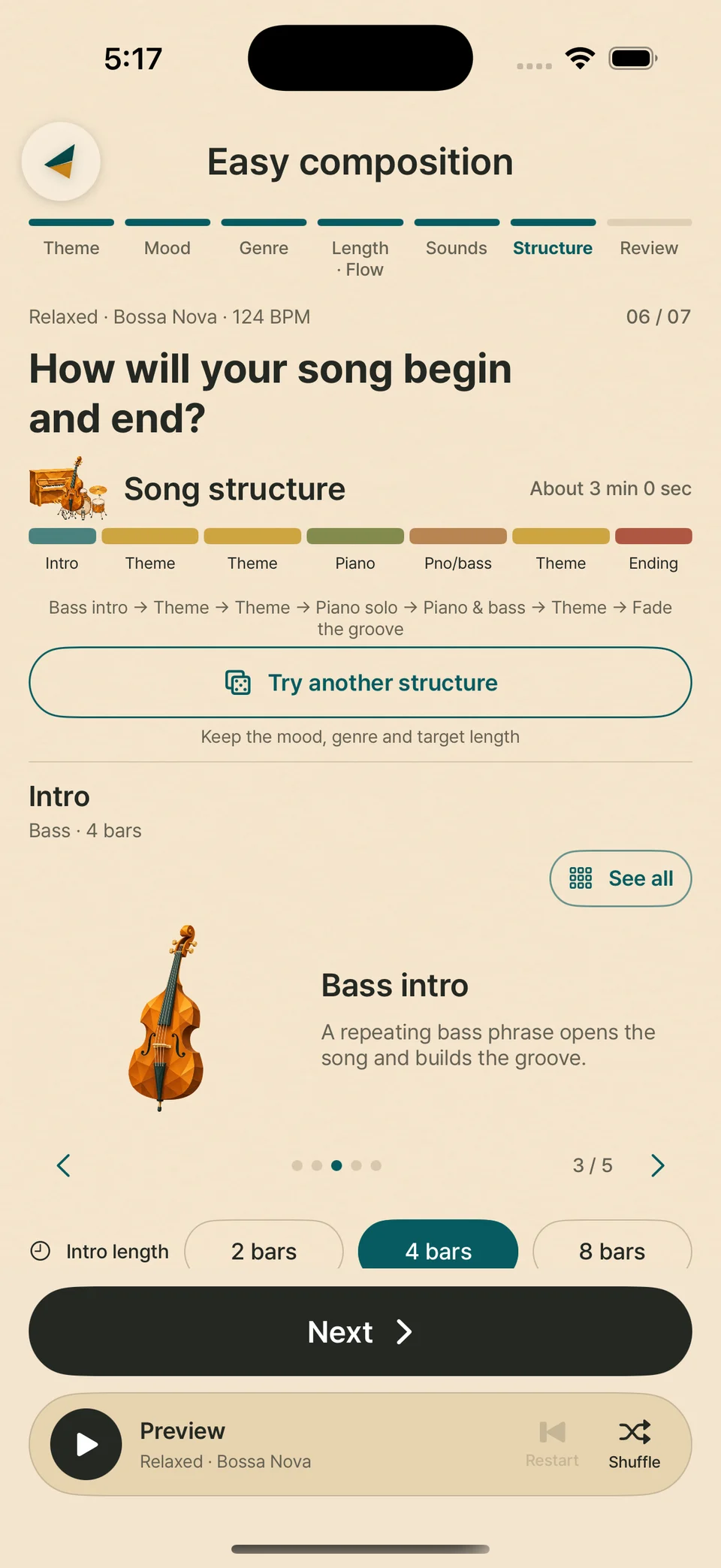
    Audition instrument sounds, set the instrumentation and review the opening, ending and theme.

  3. 03

    Review before creating

    Check the confirmation screen, return to revise individual choices or continue into advanced composition.

Controls and behaviour

Guided composition

  • Choose mood, genre, shape, instruments and structure.
  • Review the settings before creating a composition.

Advanced composition

  • Adjust structure and performance conditions in greater detail than the guided flow.

Photo and template

  • Start from a photo-based flow or template.
  • Feature availability may vary by platform and installed version.

02

Theme

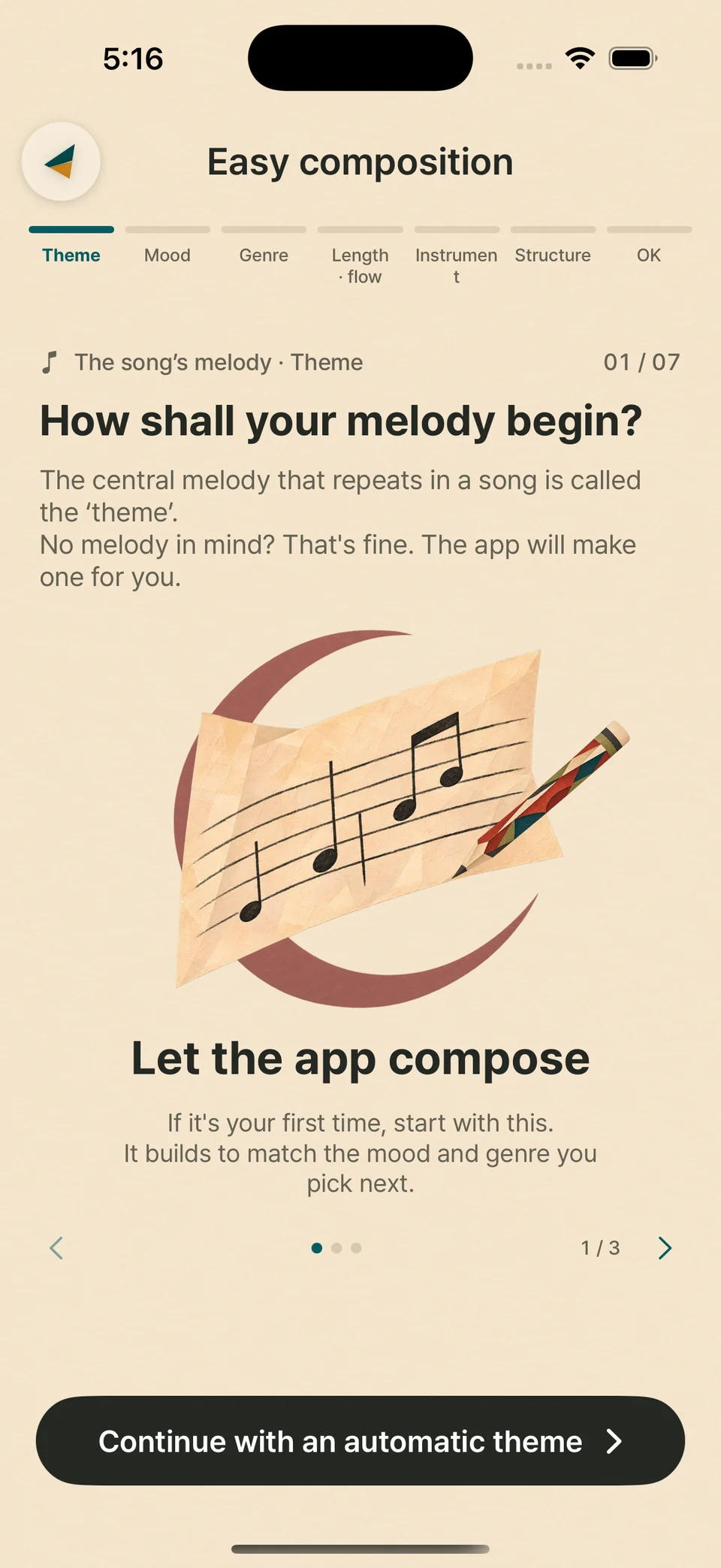
Motivo accepts keyboard playing or humming as material for a song theme. The input screen lets you listen back before choosing to use the input.
Theme input
Theme input

Workflow

  1. 01

    Choose an input method

    Let the app supply a theme, play the piano keyboard or select humming recording.

  2. 02

    Record the idea

    Change keyboard octave and record notes with their durations, or allow microphone access and hum without accompaniment.

  3. 03

    Review and apply

    Listen back, record again if needed, then choose Use this theme to pass the material into composition.

Controls and behaviour

Recording length and theme range

  • Record keys or humming for up to three minutes.
  • The first eight bars become the song theme, rather than the entire recording continuing as the song melody.

Keyboard input

  • Enter and review a theme on the keyboard for use in composition.

Humming

  • Record a hummed idea through the microphone.
  • Microphone permission is required.

Review and edit

  • Review the input before composing.
  • Recognition results are not guaranteed to be exact.

03

Arrange

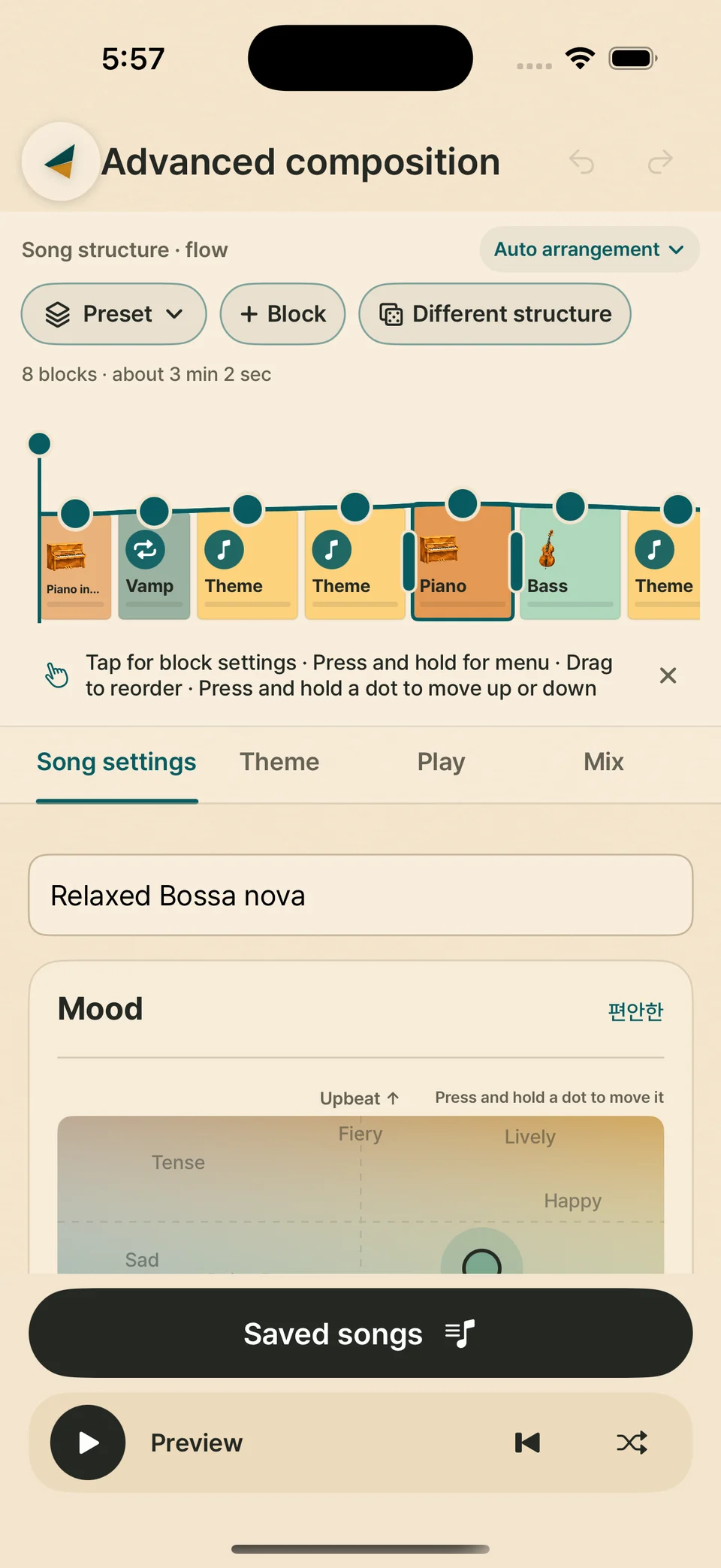
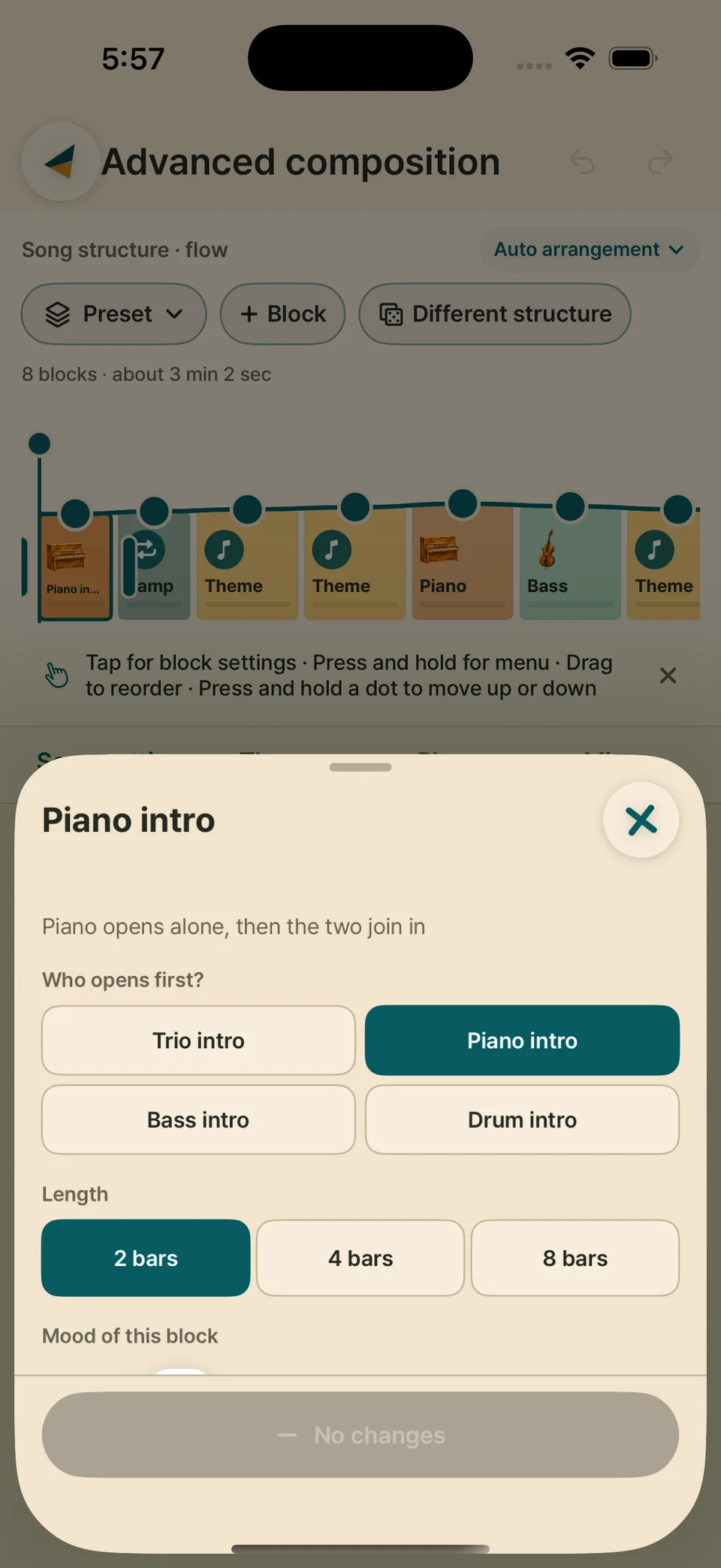
Motivo builds arrangements from intro, theme, solo and ending blocks. The controls separate block length, participating instruments and mood from song-wide performance settings.
Arrange
Arrange

Workflow

  1. 01

    Edit block order

    Add and reorder blocks to decide where themes and solos occur in the composition.

  2. 02

    Edit inside a block

    Open a block to change its type, length and mood, then select participating instruments or later entrants for an intro.

  3. 03

    Review the whole song

    Adjust tempo, transposition, chords and performance character, then play the revised arrangement.

Controls and behaviour

Song structure

  • Inspect and edit song sections and parts, moving between the whole composition and individual blocks.

Block editing

  • Build the song from intro, theme, solo and ending blocks.
  • Add or reorder blocks and adjust their length and mood.
  • For an intro, choose the opening instrument and a length of 2, 4 or 8 bars.

Performance character

  • Adjust tempo and semitone transposition, or enter a chord progression.
  • Control improvisation, swing, harmonic tension, density, dynamics and interplay.

Stage and performance

  • Review your arrangement in the stage editor and playback screen, with instrument sounds linked to sound settings.

04

Sound

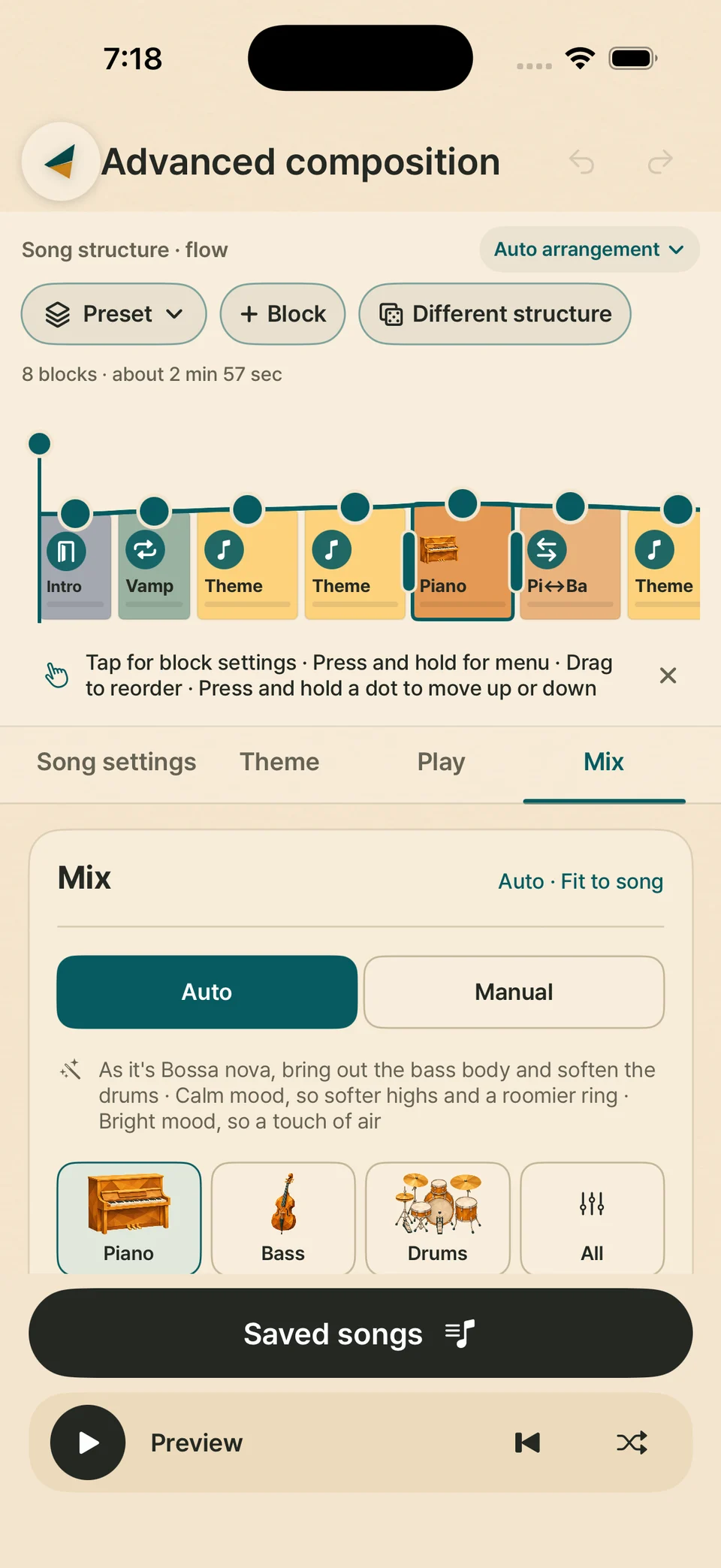
Motivo separates automatic mixing based on song settings from manual adjustments. The app treats instrument mixes and listening-room settings separately.
Sound and mixing
Sound and mixing

Workflow

  1. 01

    Choose instrument sounds

    Audition sounds in composition and choose the instrumentation for the song.

  2. 02

    Adjust from automatic values

    Switch mixing to Manual, select a part and change its volume, pan, reverb send and EQ.

  3. 03

    Compare in a room

    Choose a listening space and play the song; hold the automatic comparison control to compare it with your manual mix.

Controls and behaviour

Wi-Fi ensemble

  • Create or join a room on the same Wi-Fi; the host assigns instruments to devices and controls the playlist and count-in.
  • Each device plays its assigned parts locally, without streaming live microphone audio.

Ensemble connection and delay

  • Allow local-network access and calibrate Bluetooth output delay before starting.
  • Use the room recalibration controls to measure again or adjust by ear; response depends on devices and output conditions.

Instrumentation

  • Select instruments in the composition flow and review the resulting performance.

Mixer

  • Switch from automatic to manual mixing to adjust part volume, pan, reverb send and EQ.
  • Hold the comparison control to hear automatic values, then release it to return to your manual mix.

Room effect

  • Choose a studio, small room, bar, jazz club, concert hall or outdoor space.
  • My stage lets you set instrument positions and room size.

05

Score & export

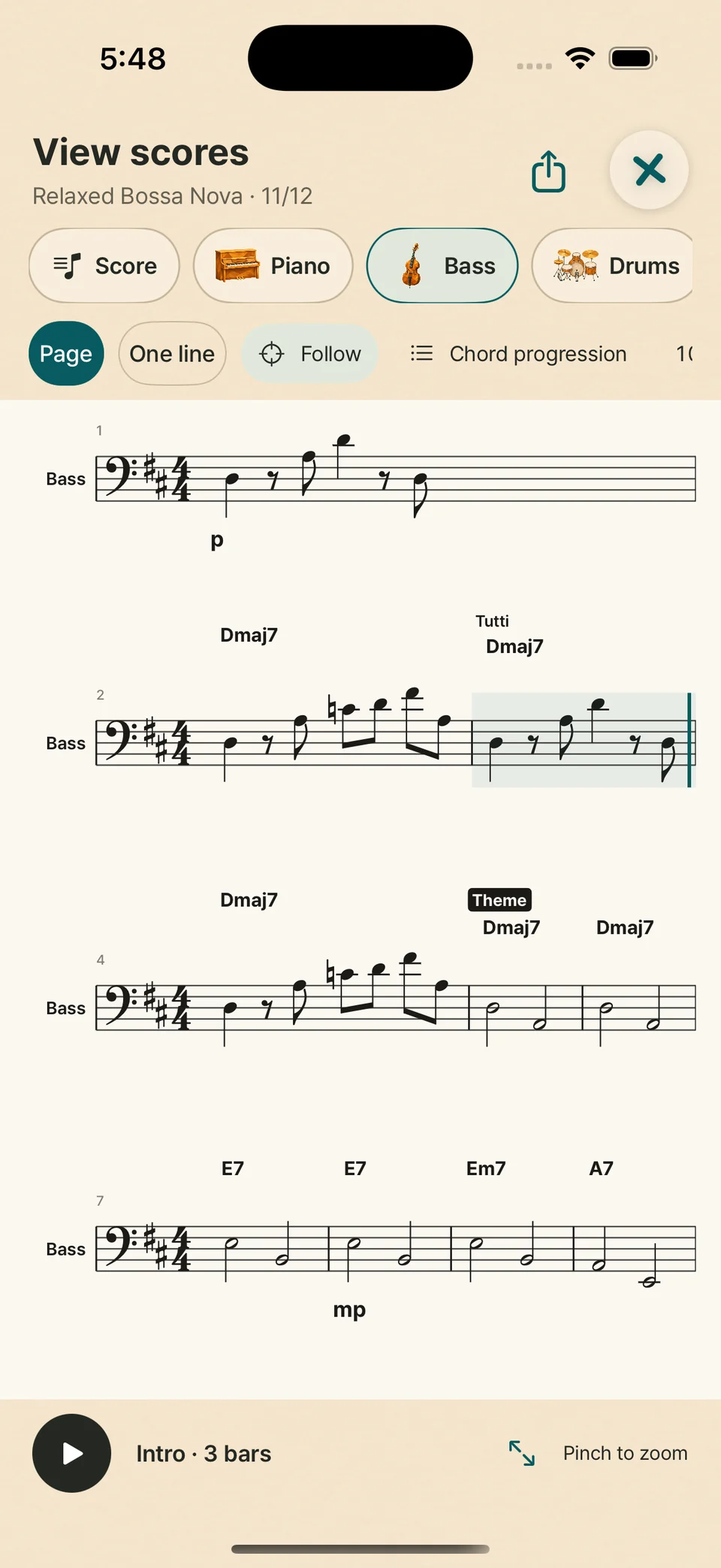
Motivo displays a saved performance as notation and exports audio, scores and song data separately. Export formats are M4A, WAV, PDF and .jazztrio.
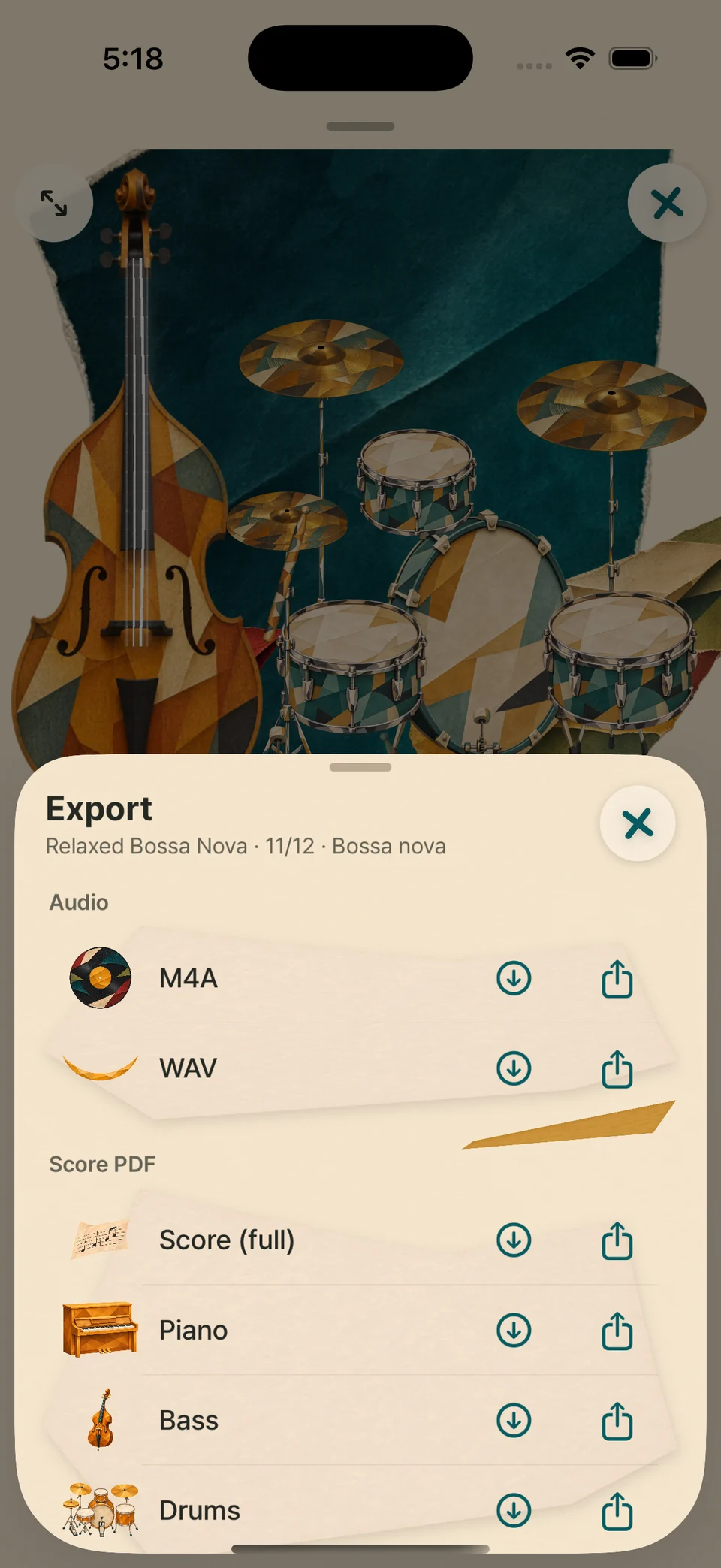
Score and export
Score and export

Workflow

  1. 01

    Select the score

    Choose the full score or an instrument part, then use page or single-line view and playback following to inspect it.

  2. 02

    Choose an output

    Select M4A or WAV audio, a full-score or part PDF, or a .jazztrio song file in Export.

  3. 03

    Save or share

    Use the item-specific save or share button; once generation finishes, choose a Files location or sharing destination.

Controls and behaviour

Score view

  • Inspect the score in page and playback views.

Parts and display

  • Switch between the full score, piano, bass, drums and a guest part when present.
  • Choose page or single-line view and playback following, open chords or pinch to zoom.
  • Tap a bar to play from it; activating a line with VoiceOver starts at its first bar.

Audio

  • Export the composition as M4A or WAV.

PDF and song file

  • Save or share a full-score or instrument-part PDF.
  • A .jazztrio song file contains settings and a fixed performance for reopening in Motivo; it is distinct from MIDI and MusicXML.

06

Library

The Motivo library reopens saved compositions for playback and continued editing. The app offers song search, sorting and per-song management.
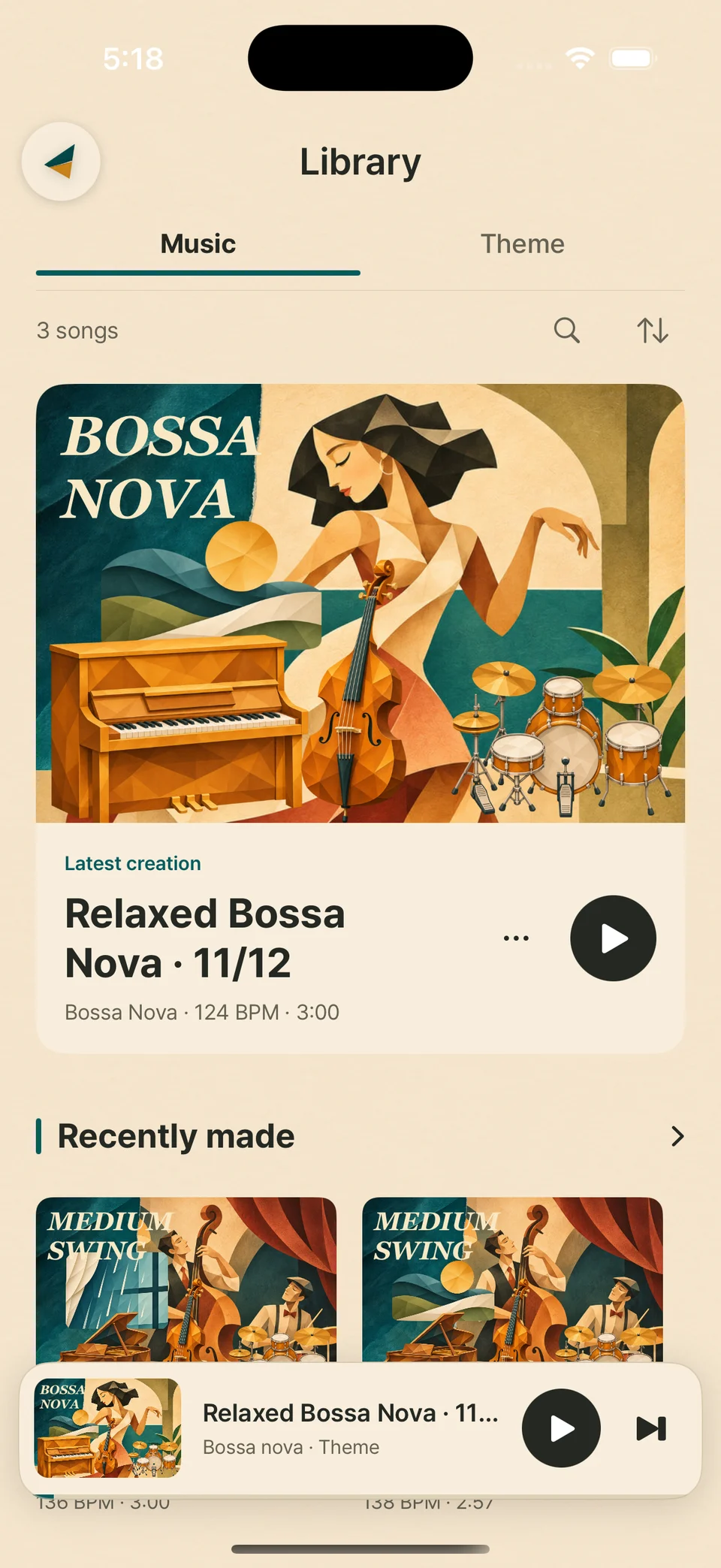
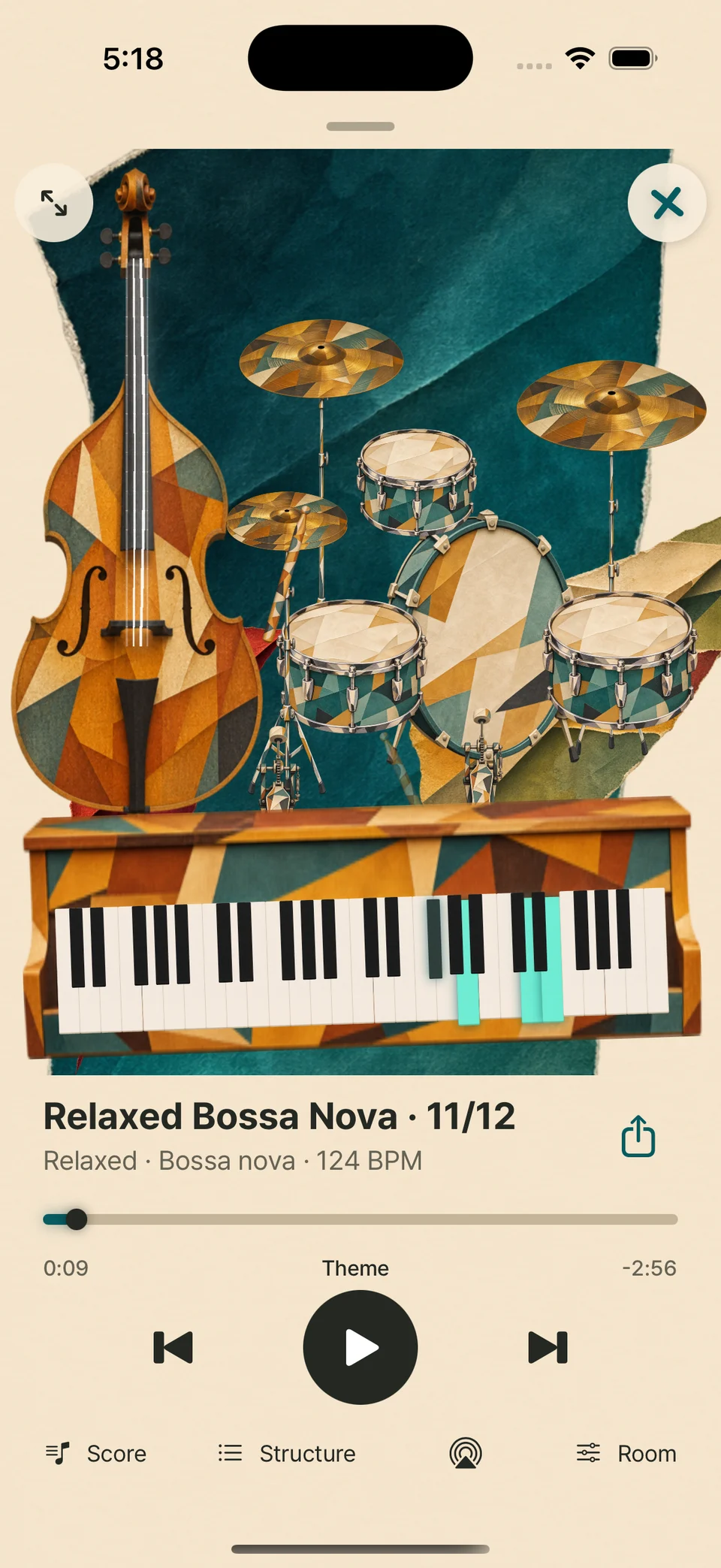
Library
Library

Workflow

  1. 01

    Find a song

    Search by title, genre or mood, or select a genre to narrow your saved compositions.

  2. 02

    Reopen the work

    Open a song for arranging, score review or export, or use its play button to listen directly.

  3. 03

    Make another version

    Duplicate and rename a song through its management menu, then develop a new arrangement separately from the original.

Controls and behaviour

Saved compositions

  • Search by title, genre or mood and sort your library.
  • Open saved songs for playback, or duplicate and rename them from the song menu.

Continue working

  • Continue with playback, arranging, score review and export.

Some features require an in-app purchase. Check the app and store listing for availability.