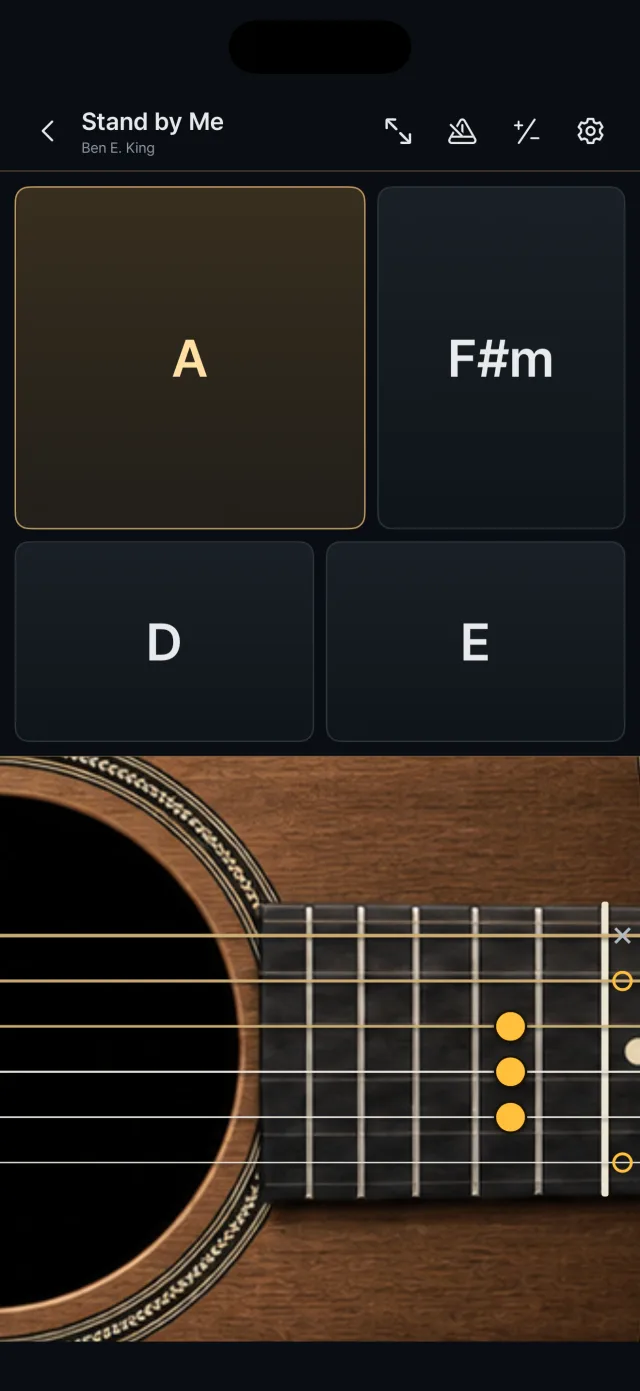
Choose a chord with a chord pad and strum by swiping up and down on the guitar area.
Choosing a chord
Touching a chord pad selects it, and it stays selected after you lift your finger.
Touch another pad to change, or slide onto another pad while holding.
With no chord selected, all six strings sound as open strings.
The fingering of the selected chord shows as dots on the fretboard, with ○ for open strings and × for strings you do not play.
Strumming
Swipe down in the guitar area for a down-strum (from string 6) and up for an up-strum (from string 1).
Multi-touch works, and an up-strum sounds 15% softer than a down-strum.
Even a very fast swipe sounds all six strings.
Single strings
Touch just one string to play only that string.
Once a string has sounded, your finger must move a set distance away (9 pt by default, 4 to 20 pt in settings) before it sounds again, so a trembling finger does not retrigger it.
Notes carry over when you change chords
When you change chords, ringing strings are not cut off but move to the pitch in the new chord, sounding like a hammer-on going up or a pull-off going down.
Strings the new chord does not play are damped over 0.09 seconds.
It is on by default at 40% (10 to 100%).
Turn it off and the new chord takes effect from the next strum.
Muting
The edge of the guitar area nearest the chord pads is the mute zone.
Adjust its width and turn it on or off for each song.
Body tap
A short tap on the guitar body, outside the strings, makes a wooden knock.
Strength is reflected.
Handedness and orientation
In settings choose right-handed (chords on the right, default) or left-handed (chords on the left).
Landscape and portrait are both supported; in portrait the chords are on top and the guitar below.
In edit mode you can rotate the guitar in 90° steps.
Metronome and transpose
The metronome at the top runs 30 to 240 BPM (90 by default).
Transpose is −6 to +6 semitones and changes chord names, fingering and sound together.
There is also a full-screen button and a keep-screen-on option.