Easy Bass
Notes & sections
Enter notes on a keyboard, split them into sections, and set a repeat count for each section.
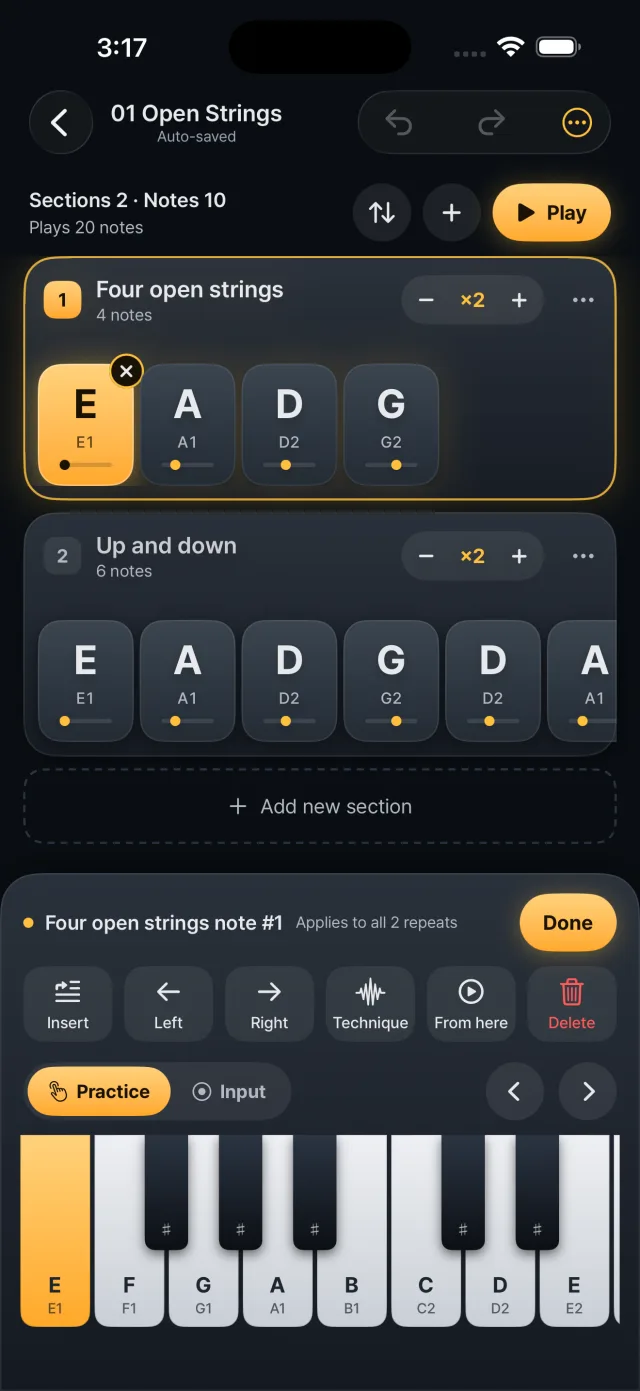 Two sections, note chips and the keyboard below
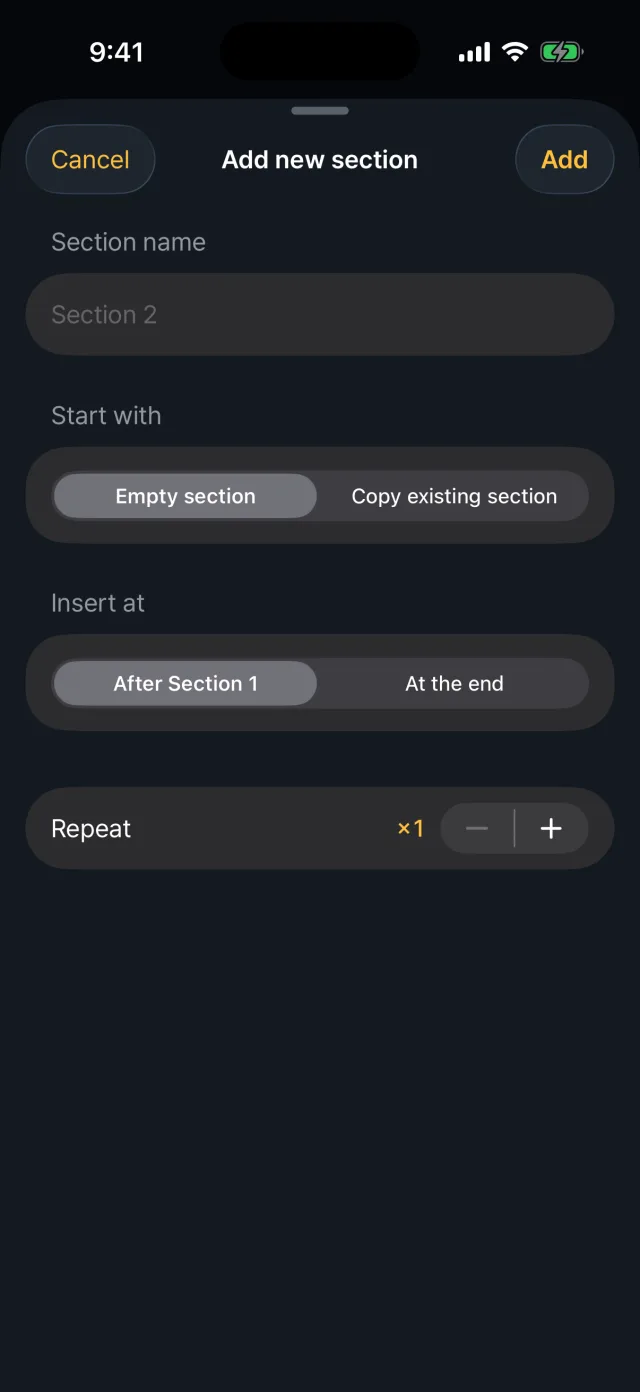 Adding and ordering sections

Keyboard input
- Enter notes on the keyboard at the bottom.
- The default range is E1 to E3; move one octave at a time with the side buttons or scroll by hand.
- In Practice mode a key only plays the sound; in Input mode the note you press goes into the song.
- Lifting without dragging enters the note.

Fixing notes
- Replace: select a note chip and press a key. It applies to every repeat.
- Insert: select a chip, turn on Insert and press a key to add before it.
- Delete: delete the selected chip, use the × on a chip, or Delete last.
- Move: use the left and right buttons or drag a chip within its section.

Technique and strength per note
- Each chip can have a technique (normal, slide, hammer-on, gliss out, ghost, thumb, pop) and a strength (soft, medium, strong).
- Techniques show as S, H, ↘, ×, T and P badges on the chip.

Sections
- Add: name it and make it empty or duplicate an existing section, placed after the selected one or at the end.
- Rename, duplicate (“… copy”) and delete (restore with Undo).
- Reorder by dragging in the sort view.
Repeat count
- Each section repeats 1 to 99 times; its note list is played that many times.
- The header shows “n sections · n notes entered / n notes played”, counting repeats.

Undo and saving
- Undo and redo go back up to 200 steps. Bookmark changes are not part of undo.
- Every edit is saved automatically.
Song settings
- The ⋯ menu sets the title, default sound (finger or slap), strength mode, transpose (±12 semitones) and file export.
- Transpose leaves the note names on screen alone and shifts only the sound.