Easy Guitar
Layout
Change the position and size of chord pads and the split between the chord area and the guitar, saved per song.
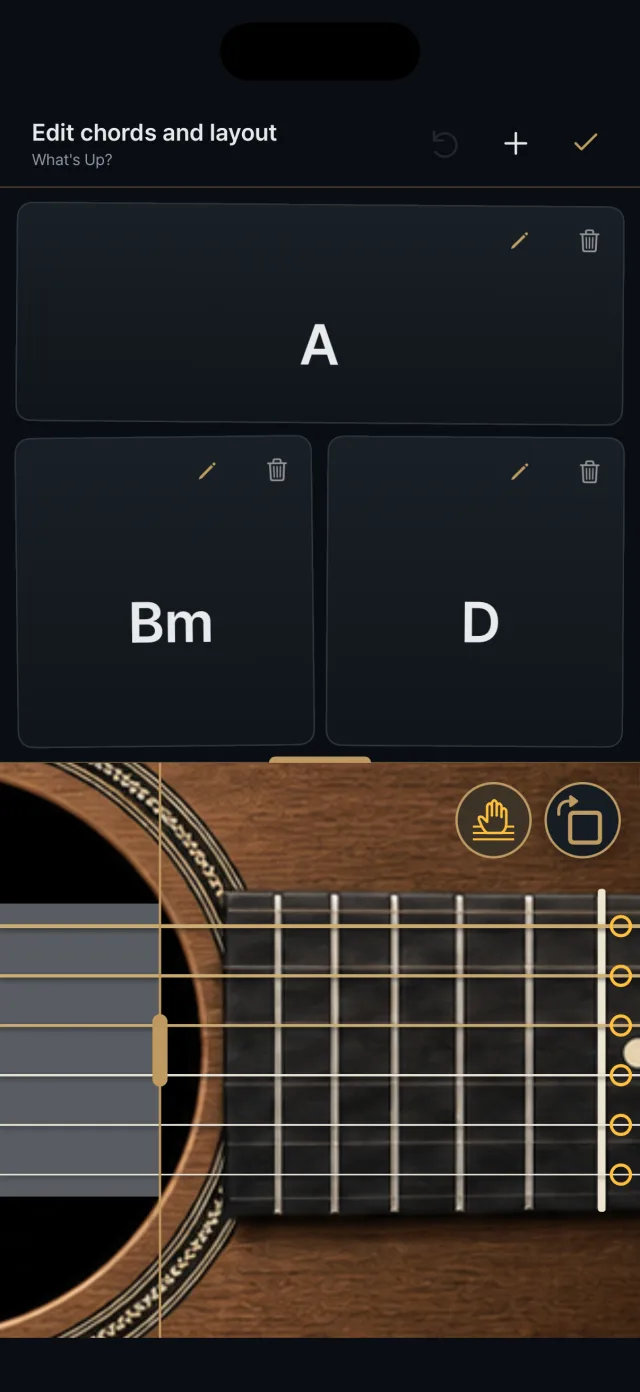 Edit mode: pads, the split line, mute and rotate buttons
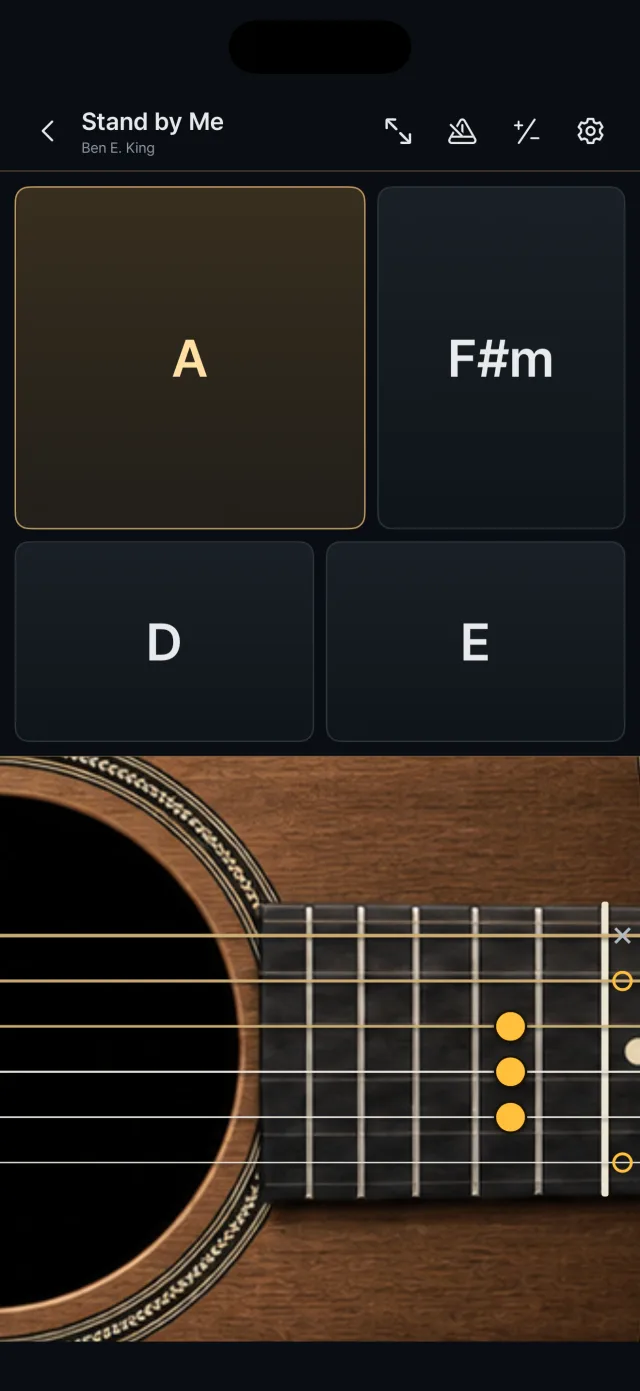 The play screen with pads of different sizes

Entering edit mode
- Open edit mode using the edit icon above the play screen.
- Add chords, move and resize pads, and adjust the mute zone and guitar orientation.

Pad position and size
- The chord area is made of rectangular pads on an invisible 12×12 grid.
- Drag a pad to move it; select it and drag a handle on any of its four edges to resize it.
- Neighboring pads move out of the way automatically.
- Pads keep a minimum of 64×56 pt.

Split ratio
- Drag the split line (the handle in the middle) between the chord area and the guitar to change the ratio.
- The chord area is 20 to 62% of the width in landscape and 20 to 62% of the height in portrait.
- The starting layout has six chords (C G / Am F / Em D) and a 40% chord area.
Left and right
- The handedness setting puts the chord area on the right (right-handed, default) or the left (left-handed).

Mute zone and guitar rotation
- In edit mode, set the mute zone's width (10 to 60%) and turn it on or off, and rotate the guitar in 90° steps.

Saving
- Each song saves its chords, pad layout, split ratio, mute zone and guitar orientation.
- Changes save automatically when you return to the library or put the app in the background.